 install docker using snap
https://console.aws.amazon.com/console/home for AWS console
building, changing, and managing infrastructure in a safe, repeatable way.
the process of managing infrastructure in a file or files rather than manually configuring resources in a user interface.
https://learn.hashicorp.com/terraform/getting-started/install
mkdir terraform-docker-demo && cd $_
Install docker
install docker using snap
sudo snap install docker

 # Create and join the docker group.
sudo addgroup --system docker
sudo adduser $USER docker
newgrp docker

 # restart docker
sudo snap disable docker
sudo snap enable docker<Paste>

 # test docker
docker ps
Paste the following into a file named main.tf
resource "docker_image" "nginx" {
  name = "nginx:latest"
}

resource "docker_container" "nginx" {
  image = docker_image.nginx.latest
  name  = "tutorial"
  ports {
    internal = 80
    external = 80
  }
}
build the container
terraform init

terraform apply
verify nginx is running or docker ps
destroy the nginx container
terraform destroy
help commands
terraform -help

terraform --help <command>
Start creating some infrastructure.
Terraform can manage many providers
Some example use cases.
Signup for free AWS account
new project
mkdir learn-terraform-aws-instance

cd learn-terraform-aws-instance
example.tf to configure aws instance
provider "aws" {
  profile    = "default"
  region     = "us-east-1"
}

resource "aws_instance" "example" {
  ami           = "ami-2757f631"
  instance_type = "t2.micro"
}
 The
The profile attribute here refers to the AWS Config File in
~/.aws/credentials
Complete configuration file documentation.
To verify an AWS profile and ensure Terraform has correct provider credentials, install the AWS CLI
Configure creds for AWS
aws configure
The provider block is used to configure the named provider.
A provider is a plugin that Terraform uses to translate the API interactions with the service e.g. aws.
The resource block defines a piece of infrastructure. A resource might be a
physical component such as an EC2 instance, or it can be a logical resource
such as a Heroku application.
The resource block has two strings before the block:
In the example, the resource type is aws_instance and the name is example.
The prefix of the type maps to the provider. In our case “aws_instance” automatically tells Terraform that it is managed by the “aws” provider.
terraform init to initialize local settings and data. Including plugins
terraform init
terraform fmt to check language consistency
terraform fmt
terraform validate to check for errors
terraform validate
terraform version to check we’re using required 0.11+ for this tutorial
terraform version
terraform plan for a dry run without applying
terraform plan
terraform apply to show the execution plan
terraform apply
Verify your running in the EC2 console
 Terraform writes data ino
 terraform.tfstate file.
See doc: setup remote state to share state automatically.
To inspect the current state
terraform show
For advanced state management
terraform state
CLI state command documentation
At this point the AMI has not been provisioned.
Let’s modify the ami of our instance. Edit the aws_instance.example
resource under your provider block in your configuration and change it to the
following:
Modify aws_instance.example to used Ubuntu 16.10 instead of 16.04 AMI
provider "aws" {
  profile    = "default"
  region     = "us-east-1"
}

resource "aws_instance" "example" {
  ami           = "ami-b374d5a5"
  instance_type = "t2.micro"
}
Find more Public and Private AMIs here
apply the change
terraform apply
Terminate resources defined
terraform destroy
Just like with apply, Terraform determines the order in which things must be
destroyed, in a suitable order to respect dependencies.
A basic example of multiple resources and how to reference the attributes of other resources to configure subsequent resources.
Assign an elastic
IP
resource "aws_eip" "ip" {
    vpc = true
    instance = aws_instance.example.id
               # :point_up: generated by resource "aws_instance" "example"
}
terraform apply
The aws_instance was created before the aws_eip. TF is able
to infer the implicit dependency due to the reference to
aws_instance.example.ed
When a dependency cannot be inferred, use depends_on to explictly create it.
For example, perhaps an application we will run on our EC2 instance expects to
use a specific Amazon S3 bucket, but that dependency is configured inside the
application code and thus not visible to Terraform. In that case, we can use
depends_on to explicitly declare the dependency:
Example explicit dependency: The aws_s3_bucket is configured in
application code and not visible to TF
resource "aws_s3_bucket" "example" {
  bucket = "terraform-getting-started-guide"
  acl    = "private"
}

resource "aws_instance" "example" {
  ami           = "ami-2757f631"
  instance_type = "t2.micro"

  depends_on = [aws_s3_bucket.example]
}
Provisioners let you upload files, run shell scripts, or install and trigger other software like configuration management tools, etc.
In general you manage image based infra using TF. Images can be built with Packer),
To define a provisioner, modify the resource block defining the “example” EC2 instance to look like the following:
create ip_address.txt using local-exec provisioner
resource "aws_instance" "example" {
  ami           = "ami-b374d5a5"
  instance_type = "t2.micro"

  provisioner "local-exec" {
    command = "echo ${aws_instance.example.public_ip} > ip_address.txt"
  }
}
verify local-exec ran
cat ip_address.txt
Terraform supports multiple provisioners
Another useful provisioner is remote-exec
Create an ssh key with no passphrase with ssh-keygen -t rsa and use
the name terraform. Update the permissions of that key with chmod 400
~/.ssh/terraform.
This example is for reference and should not be used without testing.
If you are running this, create a new Terraform project folder for this
example.
provider "aws" {
  profile = "default"
  region  = "us-west-2"
}

resource "aws_key_pair" "example" {
  key_name   = "examplekey"
  public_key = file("~/.ssh/terraform.pub")
}

resource "aws_instance" "example" {
  key_name      = aws_key_pair.example.key_name
  ami           = "ami-04590e7389a6e577c"
  instance_type = "t2.micro"

  connection {
    type        = "ssh"
    user        = "ec2-user"
    private_key = file("~/.ssh/terraform")
    host        = self.public_ip
  }

  provisioner "remote-exec" {
    inline = [
      "sudo amazon-linux-extras enable nginx1.12",
      "sudo yum -y install nginx",
      "sudo systemctl start nginx"
    ]
  }
}
If a resource is created but fails at provisioning it is marked tainted
Terraform will remove any tainted resources and create new resources, attempting to provision them again after creation.
In cases where you want to manually destroy and recreate a resource.
Given this resource
resource "aws_instance" "example" {
  ami           = "ami-b374d5a5"
  instance_type = "t2.micro"
}
manually taint a resource
terraform taint aws_instance.example
Provisioners can also be defined that run only during a destroy operation. These are useful for performing system cleanup, extracting data, etc.
see the provisioner documentation
The file can be named anything, since Terraform loads all files
in the directory ending in .tf.
Create variables.tf
variable "region" {
  default = "us-east-1"
}
ship it
terraform plan
terraform apply
Use the defined region variable in example.tf
provider "aws" {
  region = var.region
}
There are multiple ways to assign variables. The order below is also the order in which variable values are chosen.
using -var
terraform apply -var 'region=us-east-1'
To persist variable values, create a file and assign variables within this
file. Create a file named terraform.tfvars with the following contents:
terraform.tfvars
region = "us-east-1"
TF loads terraform.tfvars or *.auto.tfvars
Can specify -var-file for custom files.
Use secret.tfvars for secrets like username/password
terraform apply \
  -var-file="secret.tfvars" \
Use <env>.tfvars to provision test/stage/prod
terraform apply \
  -var-file="production.tfvars"
TF can read TF_VAR_<name> environment variables
e.g. TF_VAR_region
If you execute terraform apply with any variable unspecified, Terraform will
ask you to input the values interactively.
If no value is assigned to a variable via any of these methods and the variable
has a default key in its declaration, that value will be used for the
variable.
Data Types: strings, numbers, lists, maps (hashtable or dictionary)
variable "cidrs" { default = [] }

variable "cidrs" { type = list }

cidrs = [ "10.0.0.0/16", "10.1.0.0/16" ]
example map
variable "amis" {
  type = "map"
  default = {
    "us-east-1" = "ami-b374d5a5"
    "us-west-2" = "ami-4b32be2b"
  }
}

resource "aws_instance" "example" {
  ami           = var.amis[var.region]
  instance_type = "t2.micro"
}
Map values can also be set using the -var and -var-file values.
terraform apply -var 'amis={ us-east-1 = "foo", us-west-2 = "bar" }'
For other examples, see the API documentation.
When building potentially complex infrastructure, Terraform stores hundreds or thousands of attribute values for all your resources. But as a user of Terraform, you may only be interested in a few values of importance, such as a load balancer IP, VPN address, etc.
Outputs are a way to tell Terraform what data is important. This data is
outputted when apply is called, and can be queried using the terraform
output command.
Let’s define an output to show us the public IP address of the elastic IP
address that we create. Add this to any of your *.tf files:
This defines an output variable named ip. The public_ip attribute is
exposed by the resource.
output "ip" {
  value = aws_eip.ip.public_ip
}
Output will be displayed after terraform apply or can explicitly query with terraform output
Modules are used to create reusable components, improve organization, and to treat pieces of infrastructure as a black box.
The examples on this page are not eligible for the AWS free
tier. Do not try the examples on this page
unless you’re willing to spend a small amount of money.
:caution: If you have any instances running from prior steps in the getting
started guide, use terraform destroy to destroy them, and remove all
configuration files.
The Terraform Registry includes a directory of ready-to-use modules for various common purposes, which can serve as larger building-blocks for your infrastructure.
In this example, we’re going to use the Consul Terraform module for AWS, which will set up a complete Consul cluster.
terraform {
  required_version = "0.11.11"
}

provider "aws" {
  access_key = "AWS ACCESS KEY"
  secret_key = "AWS SECRET KEY"
  region     = "us-east-1"
}

module "consul" {
  source      = "hashicorp/consul/aws"
  num_servers = "3"
}
The module block begins with the example given on the Terraform Registry page
for this module, telling Terraform to create and manage this module. This is
similar to a resource block: it has a name used within this configuration –
in this case, "consul" – and a set of input values that are listed in the
module’s “Inputs”
documentation.
The source attribute is the only mandatory argument for modules.
After adding a new module to configuration, it is necessary to run (or re-run)
terraform init to obtain and install the new module’s source code:
Run init to install new modules
terraform init
-upgrade will check for any newer versions
 Explicitly constrain the acceptable version numbers for each
external module to avoid unexpected or unwanted changes.
Explicitly constrain the acceptable version numbers for each
external module to avoid unexpected or unwanted changes.
Use the version attribute in the module block to specify versions:
module "consul" {
  source  = "hashicorp/consul/aws"
  version = "0.7.3"

  servers = 3
}
Apply
terraform apply
The module.consul.module.consul_clients prefix shown above indicates not only
that the resource is from the module "consul" block we wrote, but in fact
that this module has its own module "consul_clients" block within it. Modules
can be nested to decompose complex systems into manageable components.
The module’s outputs reference describes all of the different values it produces.
asg_name_servers is the name of the auto-scaling group that was
created to manage the Consul servers.
output "consul_server_asg_name" {
  value = "${module.consul.asg_name_servers}"
}
If you look in the Auto-scaling Groups section of the EC2 console
you should find an autoscaling group of this name, and from there find the
three Consul servers it is running. (If you can’t find it, make sure you’re
looking in the right region!)
Terraform supports team-based workflows with a feature known as remote backends.
Terraform has multiple remote backend options. HashiCorp recommends using Terraform Cloud.
sign up here for this guide.
For more information on Terraform Cloud, view our getting started guide.
When you sign up for Terraform Cloud, you’ll create an organization.
Make a note of the organization’s name.
Configure the backend in your configuration with the organization name,
and a new workspace name of your choice:
terraform {
  backend "remote" {
    organization = "<ORG_NAME>"

    workspaces {
      name = "Example-Workspace"
    }
  }
}
You’ll also need a user token to authenticate with Terraform Cloud. You can generate one on the user settings page:
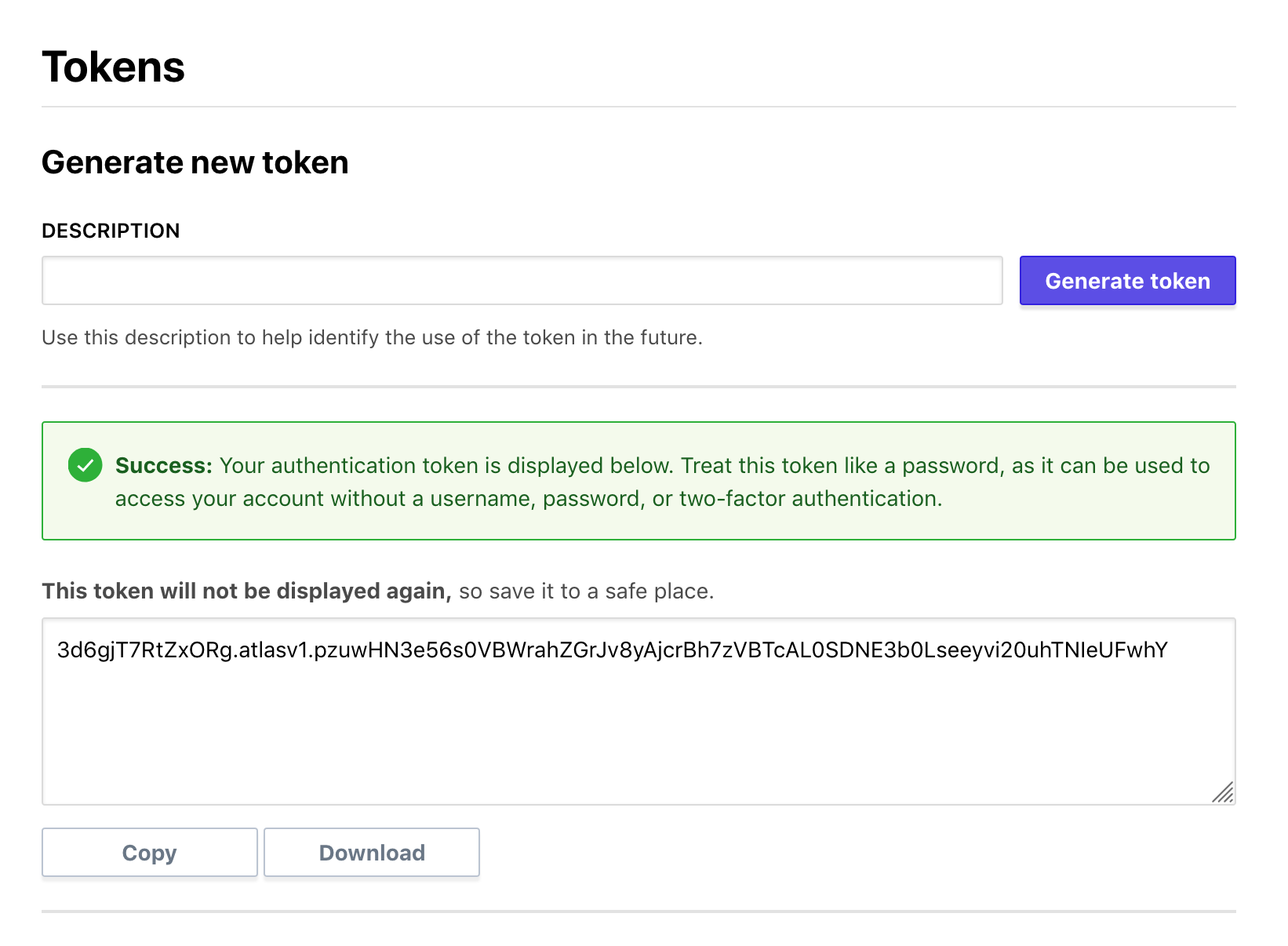
copy user token into ~/.terraformrc
credentials "app.terraform.io" {
  token = "REPLACE_ME"
}
Now that you’ve configured your remote backend, run terraform init to setup
Terraform. It should ask if you want to migrate your state to Terraform Cloud.
init with new cloud setup
terraform init

terraform apply
Terraform is now storing your state remotely in Terraform Cloud
Terraform Cloud offers commercial solutions which combines a predictable and reliable shared run environment with tools to help you work together on Terraform configurations and modules.
For a hands-on introduction to Terraform Cloud, follow the Terraform Cloud getting started guides for our free offering as well as Terraform Cloud for Teams and Governance.